PaySec Advanced Gateway - Voiding/Refunding/Queuing/Recharging a Transaction
Overview:
Once a transaction has been processed, you can take several actions, such as voiding, queuing, adjusting, refunding, or recharging.
00:00: This tutorial will guide you through voiding, refunding, queuing, and recharging a
00:04: transaction using the PaySec Advanced Gateway application.
00:07: Before you begin, ensure you have access to your PaySec Advanced Gateway account and
00:11: the necessary permissions to manage transactions.
00:14: Click dashboard to access the main overview of your transactions.
00:19: Click batches to view grouped transaction sets for processing.
00:23: Click true to select, the specific batch.
00:25: You want to manage.
00:26: Feel true to confirm or input necessary batch details.
00:30: Click here to proceed with the selected batch action.
00:34: Click cancel to stop. The current operation if needed.
00:37: Click here to continue with another batch related tasks.
00:41: Click cancel to abort the ongoing process if you change your mind.
00:45: Click here to initiate, a new batch action or review.
00:48: Click batches to return to the batch overview page.
00:52: Click here to select a batch for further action.
00:55: Click cancel to exit the current batch operation safely.
00:58: Click queued to view transactions, waiting for processing.
01:02: Cliq card to manage card related transactions within the batch.
01:06: Have successfully navigated through the process of voiding refunding, queuing
01:10: and recharging transactions within the pace catway application.
01:14: Verify that your intended batch actions are reflected correctly in the
01:18: system. For further assistance, explore related tasks such as transaction
01:22: reporting or batch reconciliation.
Voiding/Refunding/Queuing/Recharging a Transaction Overview
Voiding/Refunding a transaction:
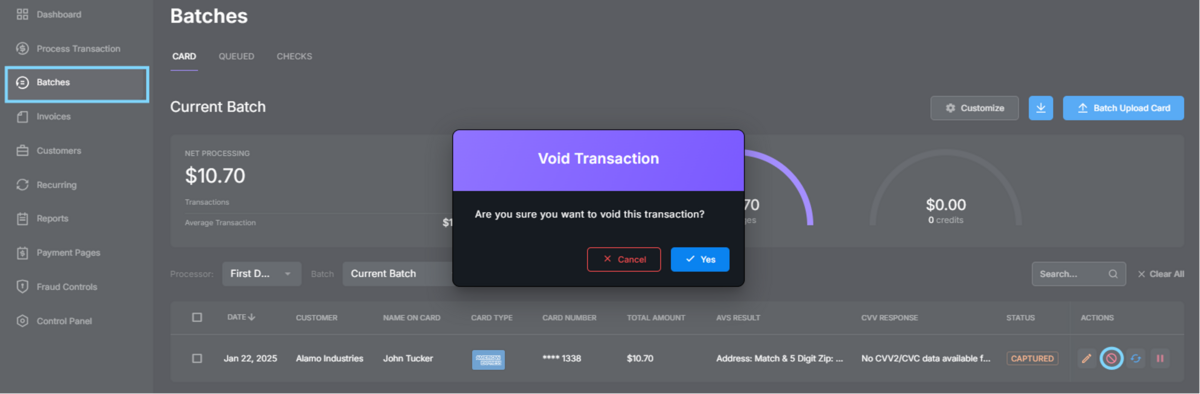
A void can be attempted if the transaction is in an open batch. Once the batch has closed, a refund must be processed instead.
To void or refund a transaction, navigate to the Batches or Reports tab on the left panel.
Locate the transaction you wish to void or refund.
To void the transaction, click the Void
icon.
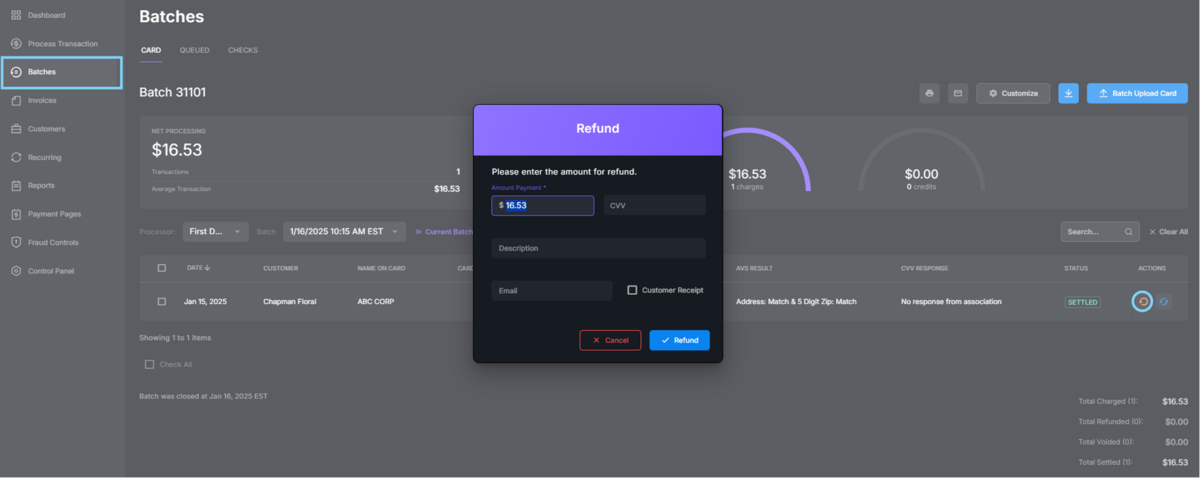
For a settled transaction, click on the Refund icon.
Enter the amount you wish to refund.
Provide the CVV (if available).
Add a description.
Enter the customer’s email address and check the box to send them a refund receipt.
Click Refund.
Queuing a transaction:
If a transaction has not settled, you can queue the charge
This is useful if you’ve run a transaction but are not yet ready to ship the product or provide the service and do not want the funds removed from the customer’s account until a later date.
Queuing a transaction will change its status to "authorized only."
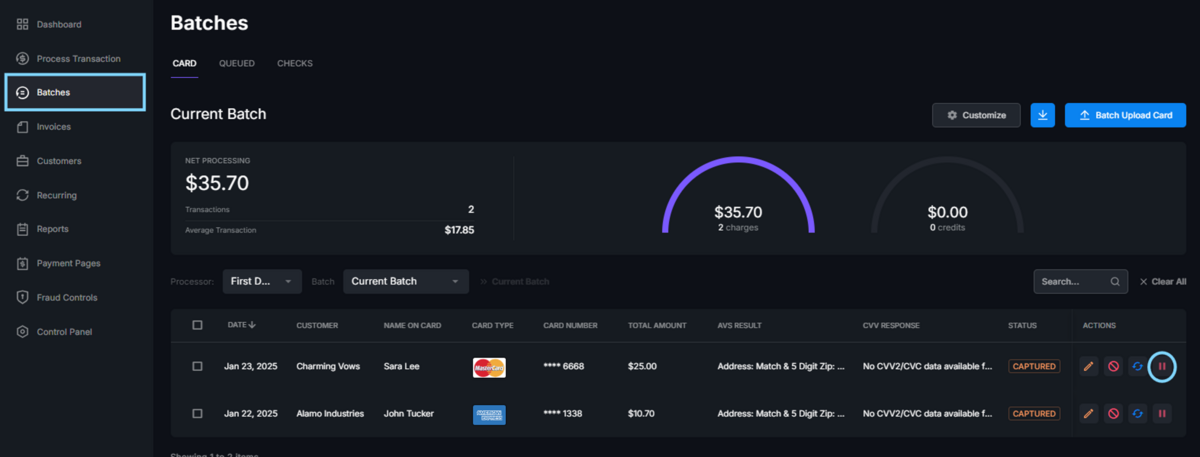
To queue a transaction, navigate to the Batches or Reports tab on the left panel.
Locate the transaction you wish to queue.
Click the Queue icon.
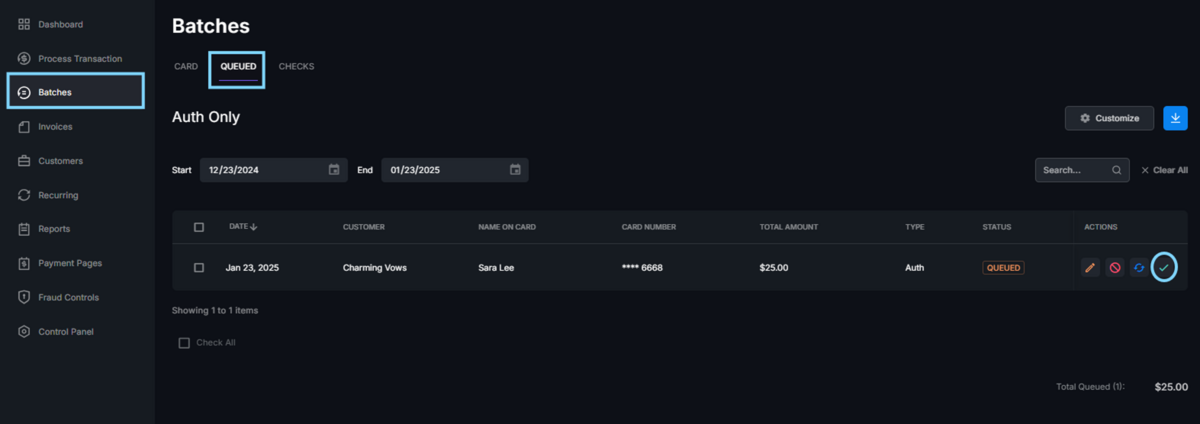
Once queued, a transaction will remain in the Queued tab found under Batches until you either void, capture, or the transaction expires.
Capturing a transaction will return it to an open batch, and it will settle when the batch closes.
If no action is taken against the queued transaction, it will expire after a predetermined number of days.
TIP! You can set the number of days a queued transaction will remain valid before expiring in Control Panel> Batch Settings>Expire Auth After. Use the drop down menu to make a selection and Save changes.
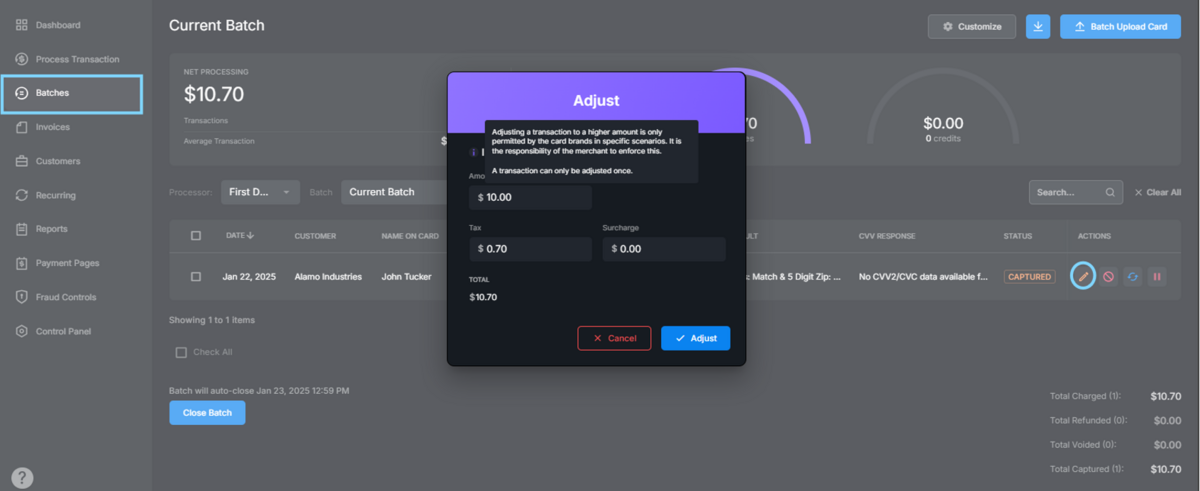
Adjusting a transaction:
You can adjust the transaction amount if the batch has not yet closed.
A transaction can only be adjusted once.
To adjust a transaction, navigate to the Batches Or Reports tab on the left panel.
Locate the transaction you wish to adjust.
Click the Adjust icon.
Enter the new amount and click Adjust.
TIP! Adjusting a transaction to a higher amount is only permitted by the card networks in specific scenarios. It is the merchant's responsibility to enforce this.
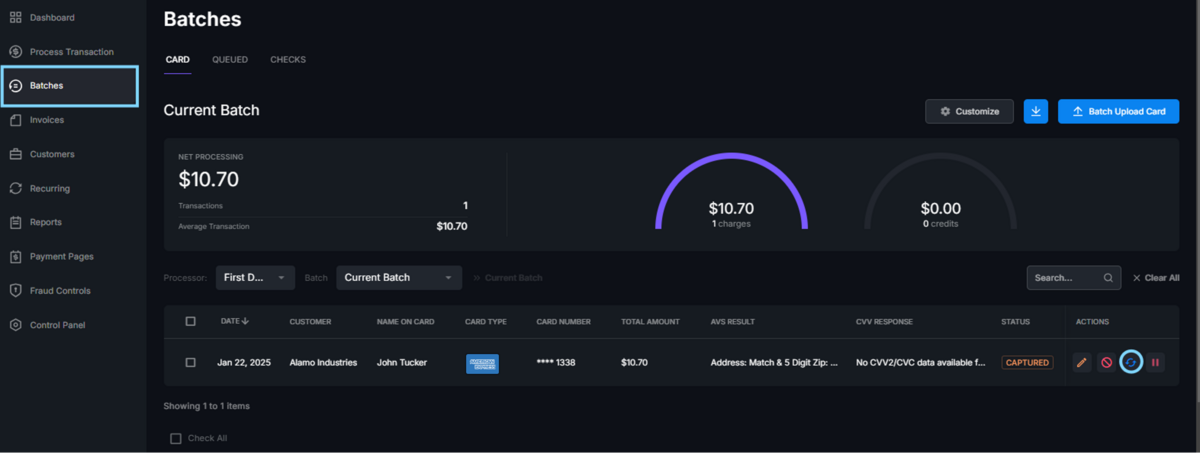
Recharging a transaction:
To recharge a transaction, navigate to the Batches orReports tab on the left panel.
Locate the transaction you wish to recharge.
Click the Recharge icon.
Once selected you will be redirected to the Process Transaction tab to complete the transaction.