Back to Tech Guides

PaySec Advanced Gateway - Transaction Processing

Overview:

The Process Transaction tab allows you to process credit card or ACH (check) transactions by entering a customer’s payment information.

  • Terminal (EMV) transactions are also supported.

The virtual terminal enables you to take additional actions related to transactions, such as setting up recurring payments, adding a surcharge, configuring sales tax, saving or updating a customer profile, and more.

00:00: In this tutorial, you will learn how to process transactions using the PaySec

00:04: Advanced Gateway application.

00:07: Before you begin, ensure you have access to the PaySec Advanced Gateway dashboard and

00:11: the necessary customer information to complete transactions.

00:14: Click the dashboard to start your transaction.

00:17: Click process transaction to open the transaction form.

00:21: Cliq card to select card payment method.

00:25: Click customer to choose the customer for this transaction.

00:28: Click Test Company, ABC 123 test customer to select the test customer

00:33: Click amount asterisk to enter the transaction amount.

00:37: Fill one as the transaction amount.

00:39: Click surcharge to add any additional fees.

00:42: Fill one as the surcharge amount.

00:44: Click email customer receipt to enable sending a receipt via email.

00:48: Feel true to confirm email receipt.

00:51: Click email star to enter the customer's email address.

00:54: Click email customer receipt. Again, to verify the option is enabled.

00:58: Feel true to confirm the email receipt setting.

01:01: Click here to proceed to the next step.

01:03: Click here to continue with the transaction details.

01:07: Click here to confirm the information entered.

01:10: Click same as billing to use billing address for shipping.

01:13: Feel true to confirm shipping address.

01:16: Click same as billing again to confirm address consistency.

01:19: Feel true to finalize the address confirmation.

01:22: Click process transaction to submit the payment.

01:26: Click done to complete the transaction process.

01:29: Click check to verify the transaction status.

01:32: Click here to access transaction details.

01:35: Click Test Company, ABC 123 test customer to review customer

01:39: info.

01:41: Click cache to select cache payment method.

01:44: Click customer asterisk to choose the customer for cash payment.

01:48: Click Test Company, ABC 123 test customer to select the test customer

01:52: again.

01:53: Click control panel to access administrative settings.

01:57: Click user management to manage user accounts.

02:00: Click transaction settings to configure transaction options.

02:04: Cliq card to adjust card payment settings.

02:07: Click required to set mandatory fields.

02:10: Click required to confirm required field settings.

02:13: Click required to review required Fields again.

02:17: Click required to finalise required field configuration.

02:20: Click check to save the settings.

02:23: Click here to exit the settings menu.

02:26: Click cache to return to cash Payment Processing.

02:29: You have successfully processed transactions, using both card and cash payment methods, configured,

02:34: transaction settings, and verified customer information.

02:37: To continue explore additional payment options or review transaction reports for further

02:42: insights

Transaction Processing Overview

Processing a Credit Card transaction:

  • Navigate to the Process Transaction tab on the left panel.
  • For new customers, enter the customer’s name, the name on card, and the card details.
  • For existing customers, begin typing the customer’s name or customer number to receive system matches and make a selection.
  • Enter the amount.
  • Navigate to the bottom right corner of the page and click Process Transaction.
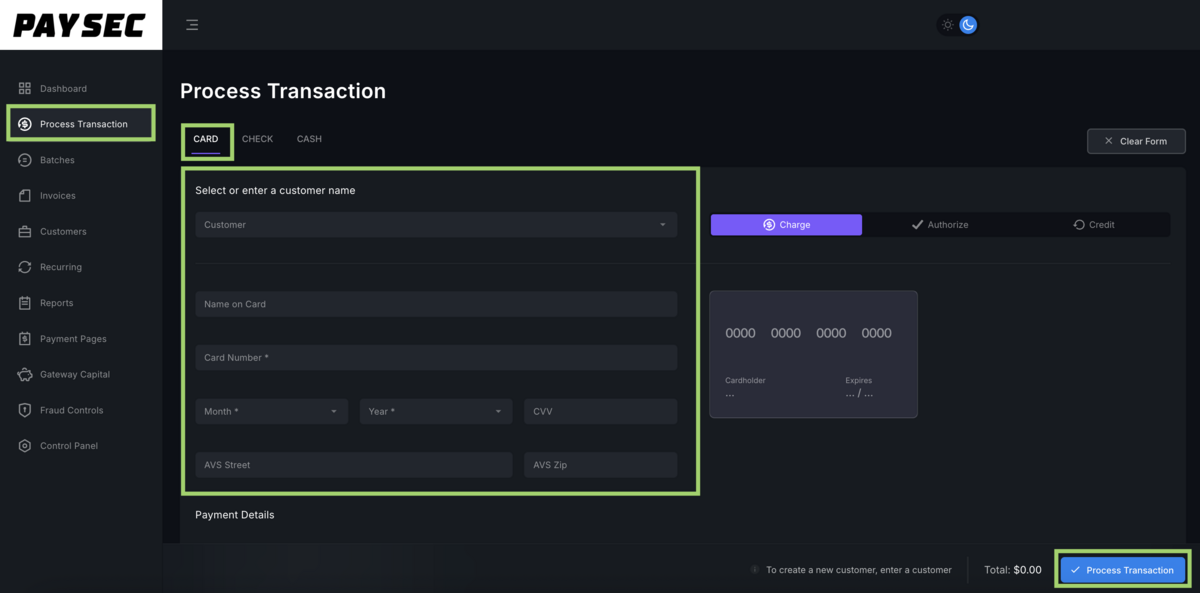
TIP! For a customer with more than one stored payment record, click the down arrow to the right of the Card Number field to choose between different cards.

00:00: Learn how to efficiently process a Credit Card transaction

00:02: using the Paysec Advanced Gateway platform.

00:06: This guide covers selecting customers, entering payment details, and finalizing the

00:10: transaction with ease.

00:12: Navigate to the Dashboard to begin managing your transactions.

00:16: Select the Process Transaction option to initiate a new payment.

00:20: Access the Customer section to choose the payer for this transaction.

00:25: Locate and select the specific customer account you want to process payment for.

00:29: Enter the cardholder's name exactly as it appears on the payment card.

00:33: Choose the card number field to specify which card will be charged.

00:38: Select or enter the card details to confirm the payment method.

00:42: Click on the Amount field to input the transaction total.

00:45: Enter the payment amount you wish to process.

00:48: Access the Surcharge field to add any additional fees if applicable.

00:52: Input the surcharge amount to be added to the transaction.

00:55: Click Process Transaction to submit the payment for processing.

00:59: Confirm completion by clicking DONE to finalize and exit the transaction

01:03: workflow.

01:05: This guide walked you through processing a payment transaction, from selecting the customer

01:09: and card details to entering amounts and completing the transaction successfully.

Credit Card Processing

Processing an ACH/Check transaction:

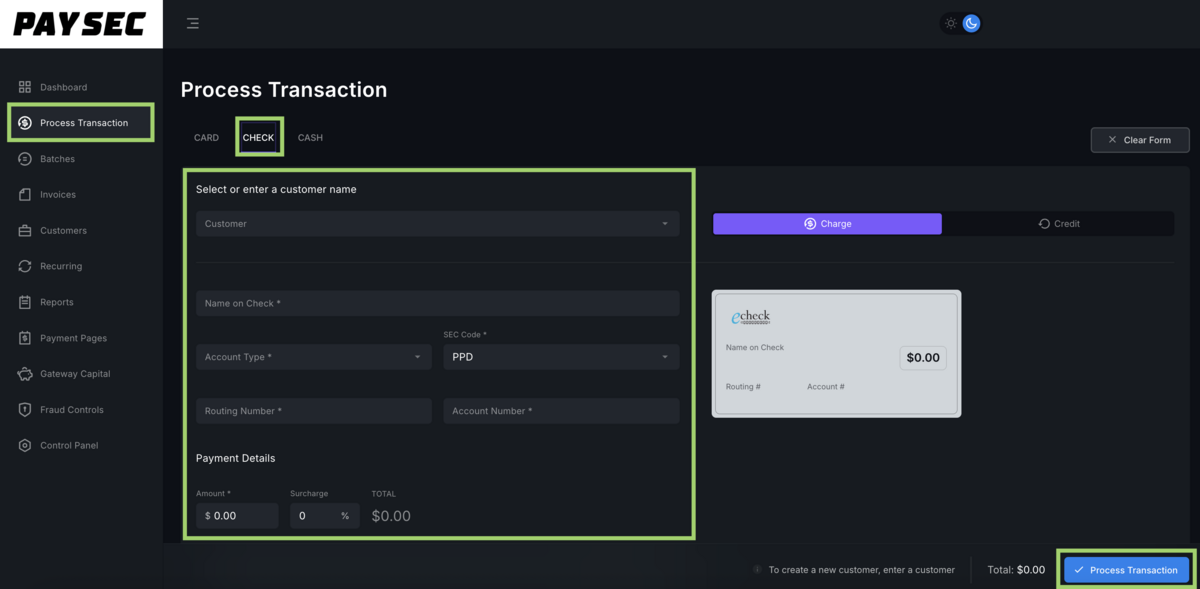
  • Click on the Check tab at the top of the Process Transaction page.
  • For new customers, enter the customer’s name, the name on the check, and check details.
  • For existing customers, start typing the customer’s name or customer number to receive system matches.
  • Enter the amount.
  • Click Process Transaction at the bottom right corner of the page.
00:00: Learn how to process an ACH and Check transaction efficiently

00:03: using PaySec Advanced Gateway.

00:06: This guide covers selecting customers and entering payment details and finalizing

00:10: the transaction with clear step-by-step instructions

00:14: Begin by navigating to the transaction processing section to initiate a

00:18: new payment.

00:19: Select the option to process a check payment to proceed with ACH transaction

00:23: details.

00:25: Access the customer list to choose the appropriate payer for this transaction.

00:30: Add or select the specific customer record associated with the payment.

00:34: Enter the name as it appears on the check to ensure accurate processing.

00:39: Choose the account type, selecting 'Checking' to specify the payment source.

00:44: Confirm the account type by reselecting 'Checking' to avoid errors.

00:48: Select the payment class code 'PPD' to categorize the transaction correctly.

00:54: Reaffirm the payment class by selecting 'PPD' again for consistency.

00:58: Input the routing number to direct the payment to the correct bank.

01:02: Provide the account number linked to the customer's checking account.

01:06: Verify the customer name to ensure the transaction is assigned properly.

01:10: Enter the payment amount to specify the funds to be transferred.

01:14: Input the exact dollar amount for the transaction to proceed.

01:18: Locate the surcharge field to add any additional fees applicable.

01:22: Enter the surcharge amount to include processing fees in the total.

01:26: Review the total amount, combining payment and surcharge for accuracy.

01:30: Access the invoice details section to link payment to billing records.

01:34: Input the invoice number to associate the payment with the correct invoice.

01:39: Enter the purchase order number to track the transaction source.

01:42: Fill in the description field to provide context for the payment.

01:46: Expand the address section to input billing or shipping details.

01:50: Enter the customer's first name to personalize the transaction record.

01:54: Input the customer's last name for complete identification.

01:57: Provide the primary street address for billing or shipping.

02:01: Add the secondary street address line if applicable for accuracy.

02:06: Enter the customer's phone number for contact purposes.

02:10: Select the option indicating the shipping address is the same as billing.

02:15: Confirm the 'same as billing' selection to streamline address entry.

02:19: Review and correct the last name field to ensure consistency.

02:23: Double-check the last name entry for accuracy.

02:26: Verify the primary street address to avoid delivery issues.

02:30: Confirm the secondary street address details if provided.

02:34: Access the phone number field again to ensure contact info is correct.

02:38: Review all entered information carefully before finalizing.

02:42: Submit the transaction to process the ACH /.

02:45: Check payment securely.

02:47: Wait for confirmation that the transaction has been successfully processed.

02:52: Complete the process by clicking 'DONE' to exit the transaction screen.

02:56: Ensure all transaction details are saved and recorded properly.

03:01: Close the transaction window to return to the main dashboard.

03:05: This guide walked you through processing. An ACH and Check transaction, including selecting

03:09: the customer entering payment and surcharge amounts providing invoice and

03:13: address details and finalizing the payment securely.

03:17: Following these steps ensures accurate and efficient transaction handling.

ACH/Check Processing

Additional transaction data:

  • Transaction details, such as the Invoice Number, PO Number, and Description, can be added by clicking on the Transaction Details banner.

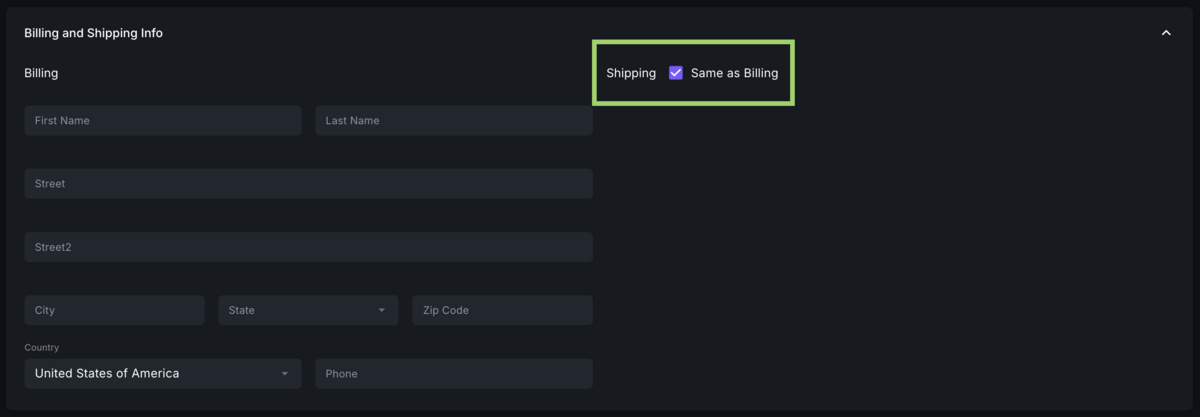
  • Enter billing and shipping information by clicking on the Billing and Shipping Info banner.
  • Shipping Info list same as billing by default. To enter separate values, uncheck the same as billing box.
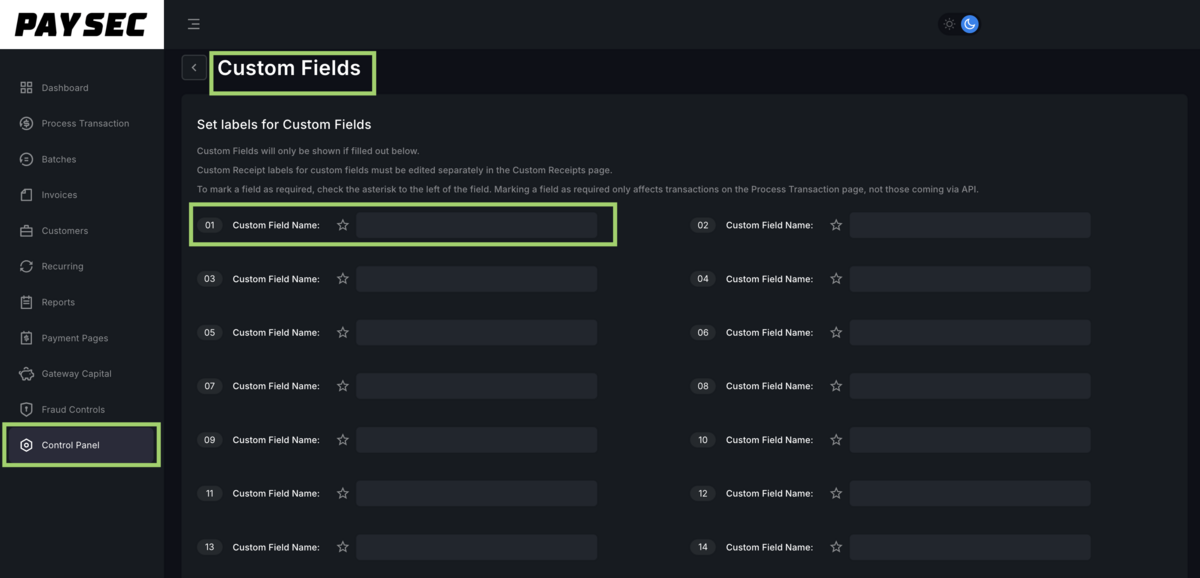
  • To create additional discretionary data fields, go to the Control Panel tab on the left panel, click on Custom Fields, and add up to 20 custom data fields with labels.
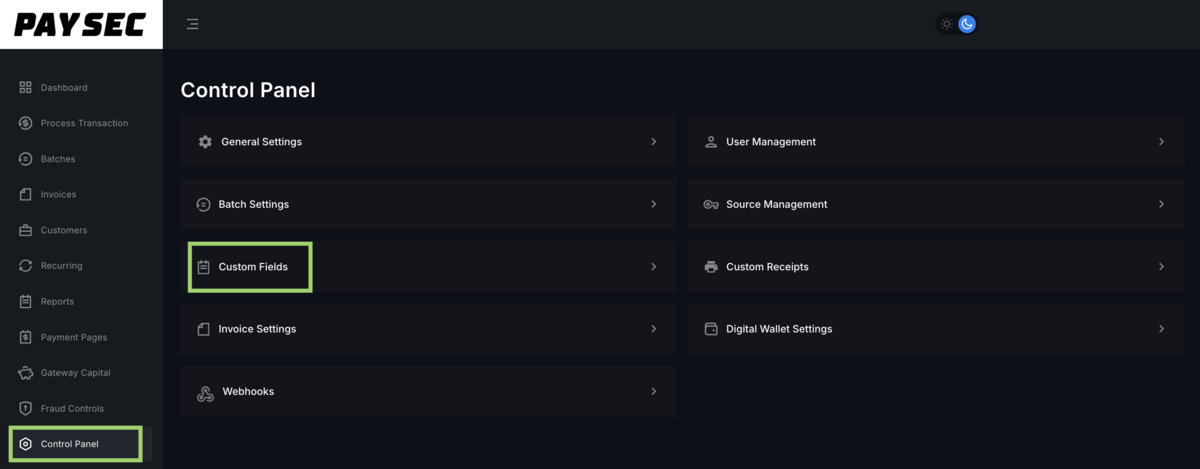
  • Click the star until it turns purple to mark the field as required.
  • Save

TIP! Custom fields can be added to Hosted Payment Pages and receipts and are visible within reporting.

  • These fields will now appear under the Custom Fields banner in the Process Transaction tab.
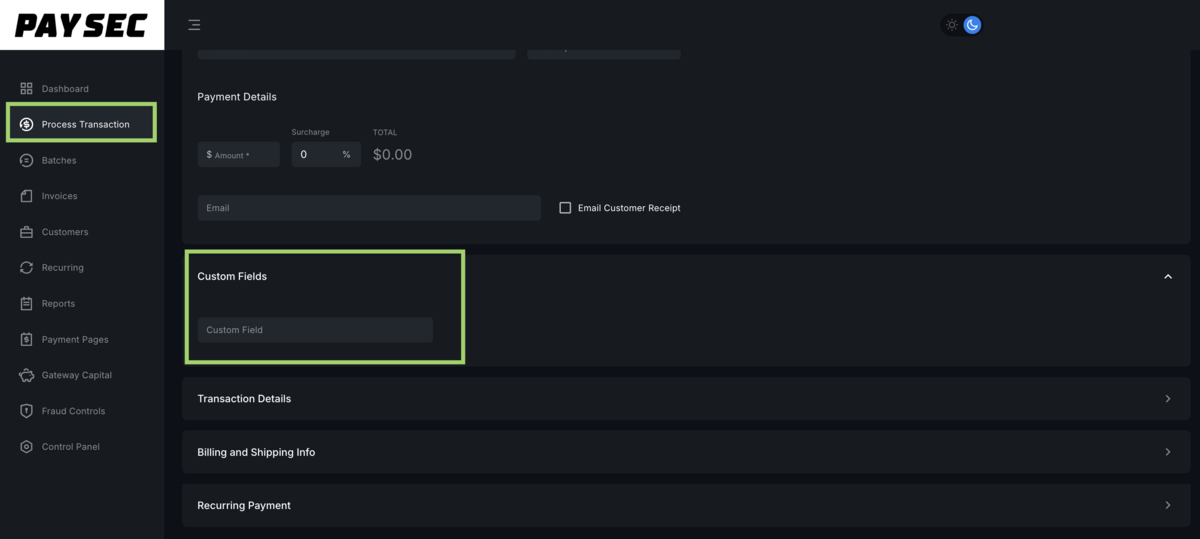
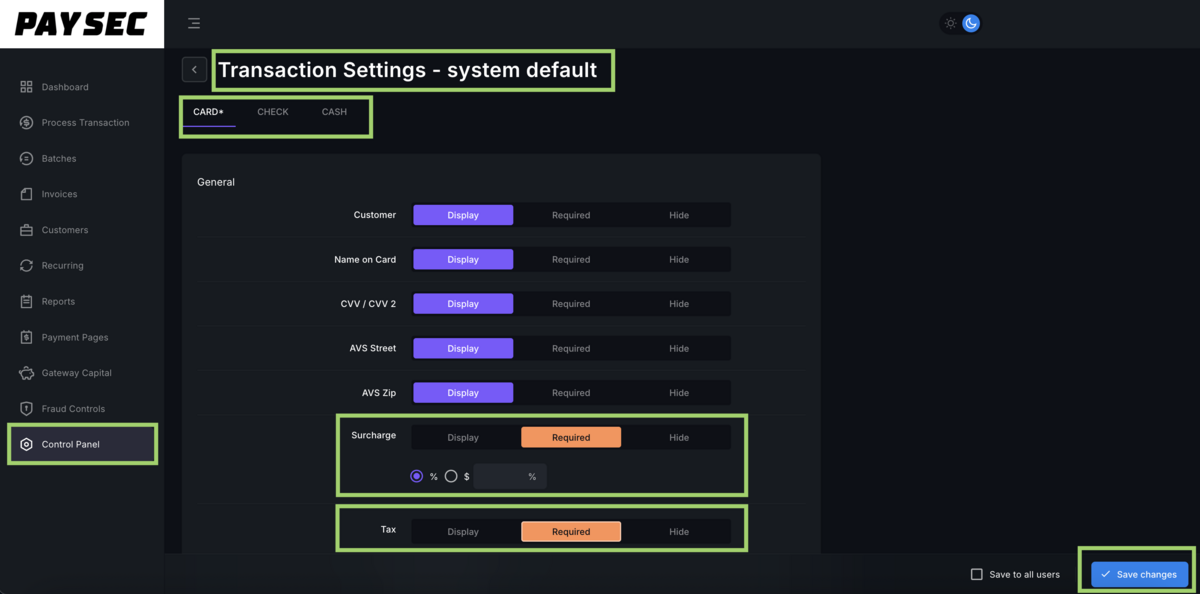
TIP! Navigate to Control Panel > User Management > Transaction Settings to customize the fields in the Process Transaction tab.
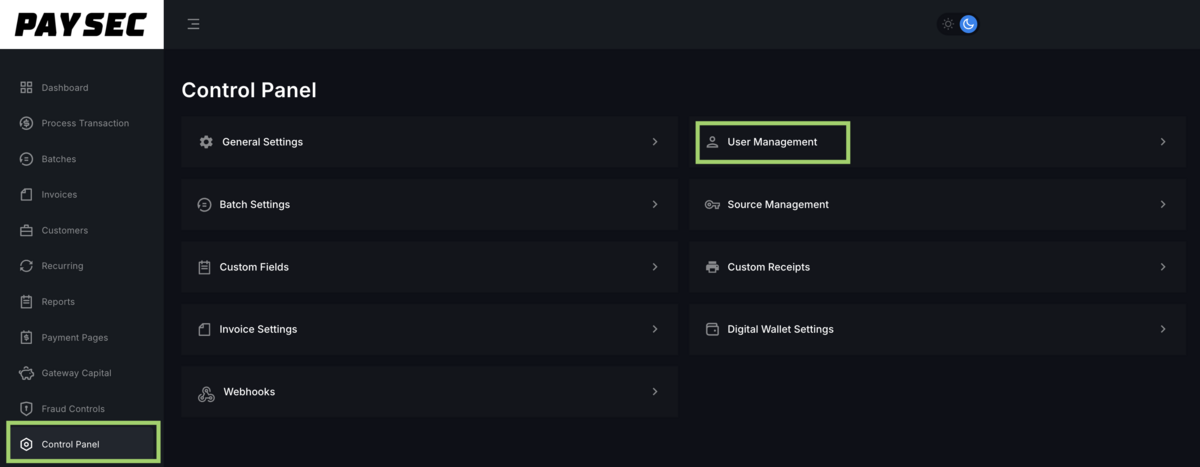
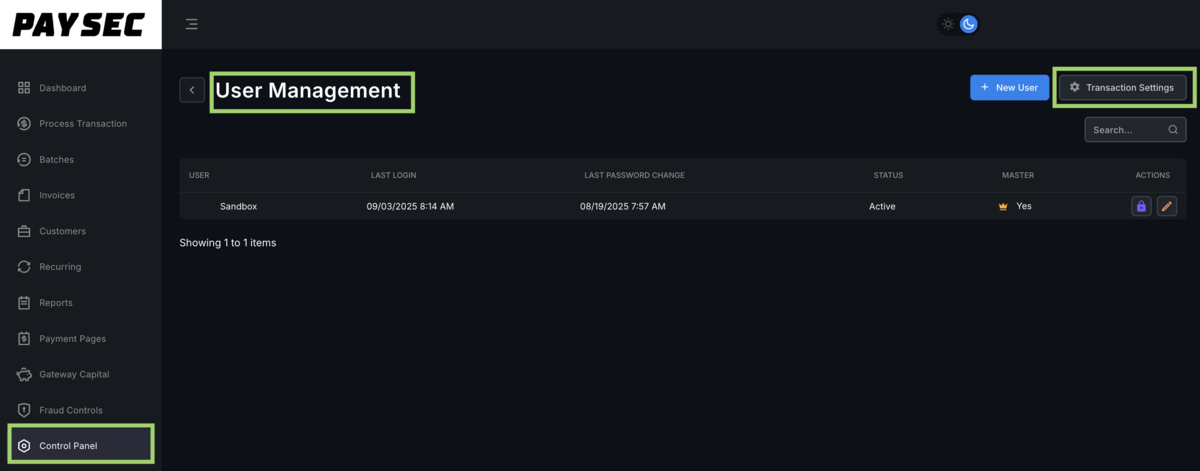
Here, you can choose to display, require, or hide specific fields. Default settings for surcharge and tax can also be set. These settings can be configured separately for card, check, and terminal and can also be configured at user level.
00:00: Learn how to create an add custom fields to tailor your transaction data

00:04: collection.

00:05: This guide provides clear steps to customize your account and enhance your transaction

00:09: processing experience.

00:11: Navigate to your dashboard to access the main control area of your account.

00:16: Open the control panel to manage your account settings and configurations.

00:21: Select custom fields to view and manage additional data fields for your transactions.

00:26: Initiate the creation of a new custom field by clicking the designated add

00:30: button.

00:31: Enter the details for your new custom field including name and any required parameters.

00:36: Save your new custom field to make it available for use in your transactions.

00:41: Return to the main custom Fields list to verify your new field has been added.

00:46: Access the process transaction section to apply your custom Fields during transaction

00:50: processing.

00:52: Choose the appropriate option to include your newly, created custom field in the transaction

00:56: form.

00:57: Confirm that your new custom field appears correctly in the transaction interface

01:01: for data entry.

01:03: This guide walked you through creating an adding custom Fields within your account, then applying

01:07: them during transaction processing to capture additional data efficiently.

Custom Fields Setup

00:00: Learn how to customize your payment transaction settings, by displaying requiring

00:04: or hiding specific fields for card and cash payments.

00:08: This guide helps you enforce data entry rules, and enhance security through clear step-by-step

00:12: instructions.

00:13: Navigate to the main dashboard to begin, configuring your transaction settings.

00:19: Access the control panel to manage system wide preferences.

00:23: Open the user management section to adjust user related configurations.

00:28: Select transaction settings to customize payment options.

00:32: Choose the card payment method to modify, it specific settings.

00:36: Set the card fields to required to ensure essential information is collected.

00:41: Adjust the display settings for card payments to control field visibility.

00:45: Mark additional card Fields as required to enforce data entry.

00:50: Enable the verification checkbox to add an extra layer of security.

00:54: Confirm your choice by selecting. Yes, to apply the verification setting.

00:59: Designate, certain card Fields as required to maintain data integrity.

01:04: Reaffirm the required status for these fields to prevent omissions.

01:09: Save all changes to secure your updated card payment settings.

01:13: Return to the previous menu to continue.

01:15: Configuring other payment methods.

01:18: Proceed through the interface to locate additional payment options.

01:22: Continue navigating until you reach the cash payment settings.

01:26: Select the cache payment method to customize its requirements.

01:30: Set cash payment fields to required to capture necessary details.

01:35: Ensure all mandatory cash fields are marked as required for compliance.

01:39: Save your changes to finalize the cash payment.

01:43: Confirm the completion of your settings to exit the configuration process.

01:47: This guide walked you, through customizing, transaction settings for card and cash payments,

01:51: focusing on requiring and displaying specific fields to ensure, accurate

01:55: data, collection, and secure processing. You learned how to save and confirm

01:59: these configurations effectively

Field Operations