PaySec Advanced Gateway - Recurring and Scheduled Payments
Overview:
Recurring Payments allow you to set up a schedule for transactions to run automatically according to a specified frequency. You can edit or modify the schedule at any time.
Creating a Recurring/Scheduled Payment:
- To create a recurring or scheduled payment, navigate to the Process Transaction tab in the left panel.
- Enter the customer and card or check details as instructed in 1A) Processing a transaction.
- Scroll to the bottom of the page and click the banner labeled Recurring Payment.
- Check the Create recurring schedule checkbox.
- Enter a title for this schedule in Payment Title field.
- Choose when the schedule should begin using the First Run (EST) calendar.
- Select a frequency for the schedule (daily, weekly, biweekly, monthly, bi monthly, quarterly, biannually, annually.)
- Enter the number of times this transaction should run or select ongoing to auto-bill until the plan is manually turned off.
- Click Process Transaction.
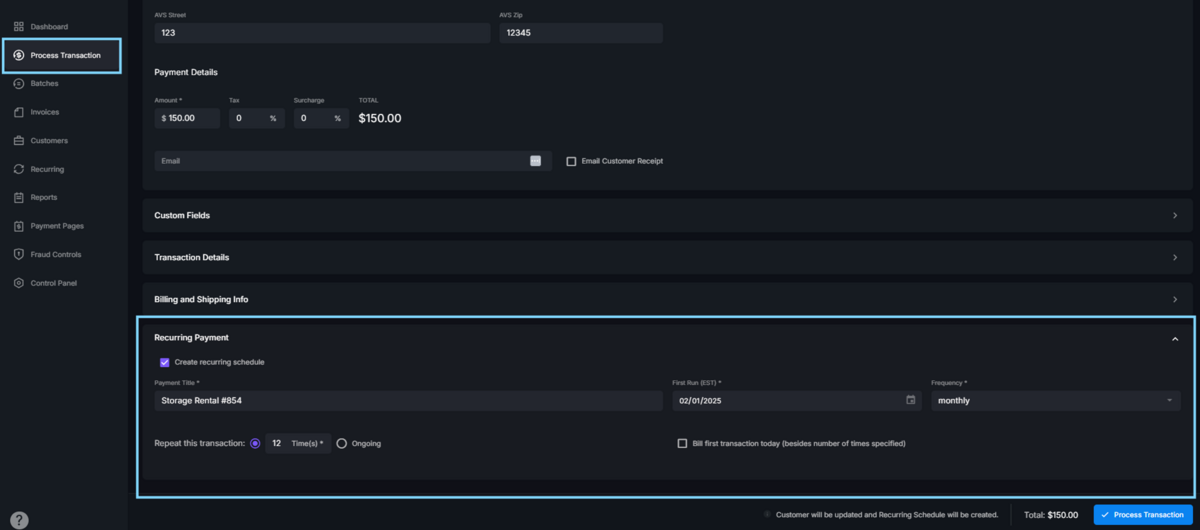
TIP! If you choose a future date for the First Run, the transaction will NOT process when you click Process Transaction. It will be processed on the specified First Run date.
If you choose a future date for the First Run, the Bill First Transaction Today checkbox (beside the number of times specified) will give you the option to process a transaction today in addition to the scheduled transactions.
Modifying a Recurring/Scheduled Payment:
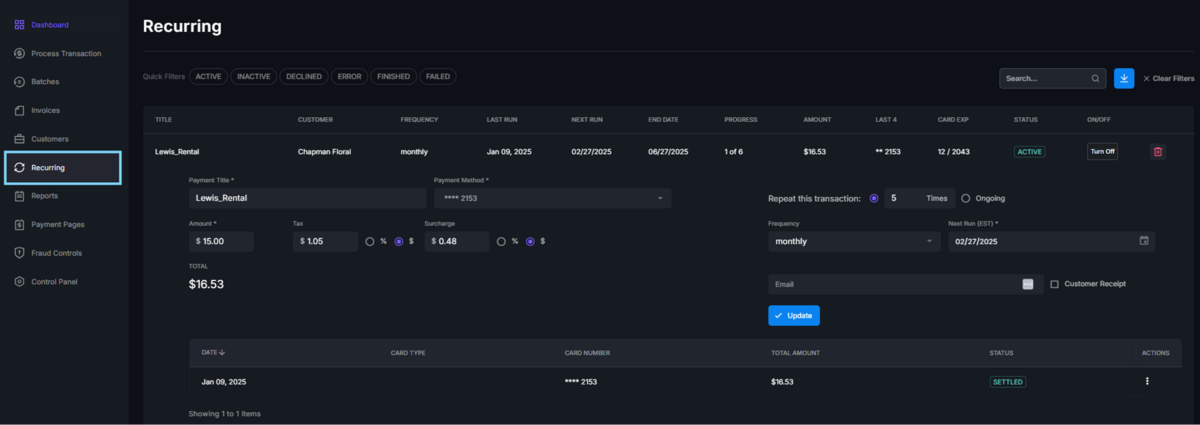
- To modify a recurring schedule, navigate to the Recurring tab on the left panel.
- Locate and click the schedule you wish to edit.
- Edit schedule as desired.
- Click Update.
TIP! Manage the number of reattempts for failed transactions and set the processing time for recurring billing transactions by navigating to Control Panel> General Settings> Recurring billing