PaySec Advanced Gateway - Fraud Center
Overview:
Your Fraud Center provides the most advanced fraud protection tools in the payment industry. Each of the eleven modules allows you to set parameters and rules to control which transactions are accepted in your account, helping to restrict potentially fraudulent transactions.
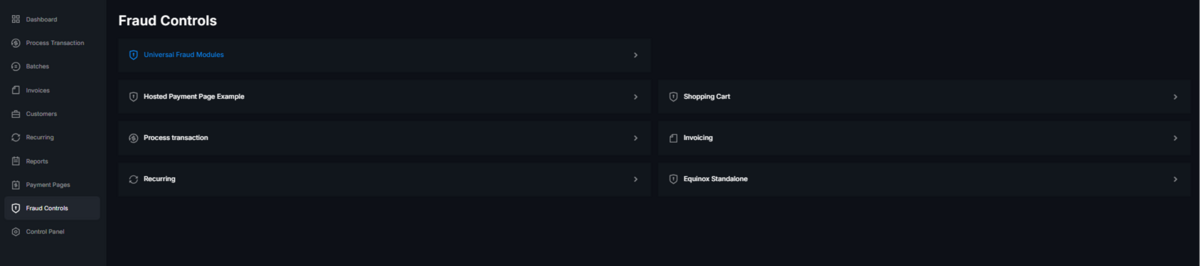
You can set Fraud Controls under the Universal Fraud Modules. Any configured controls here will apply to all payment sources connected to the merchant account.
Additionally, you can set fraud controls for specific sources, such as payments from a Shopping Cart or Hosted Payment Page. These controls will only affect transactions from the selected source and will not impact other sources (e.g., transactions processed within the virtual terminal).
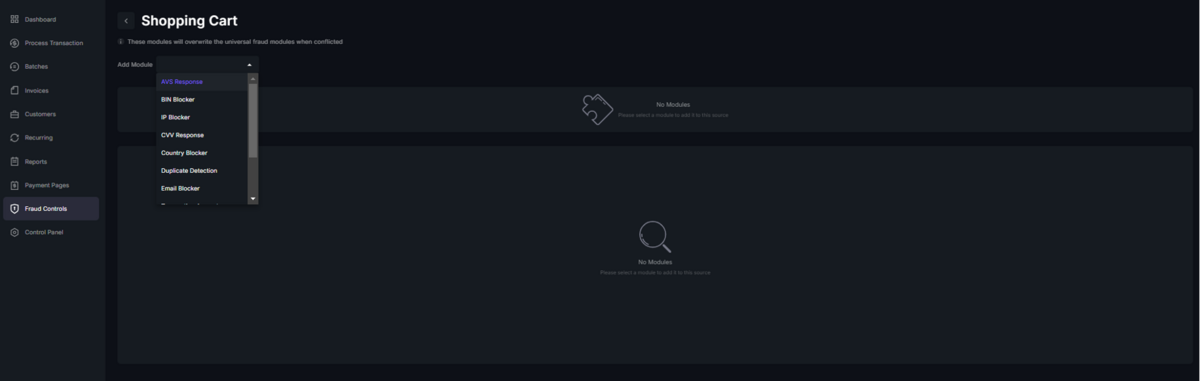
AVS Response:
- The AVS Response module allows you to choose which transactions to accept or decline based on the Address Verification System (AVS) response.
- Check the responses that you will accept.
- All unchecked responses will result in declined transactions.
- Cardholders will be able to see the authorization, and merchants can choose to unblock transactions until the batch closes.
- Once the batch closes, blocked transactions will be voided automatically.
BIN Blocker:
- The BIN Blocker module allows you to block transactions based on the first 6 digits of the card number, known as the Bank Identification Number (BIN).
- You can block transactions by: A specific BIN (e.g., 411111) / A BIN range (e.g., 411111-422222)
- This module also enables you to block cards by type, including:
- Credit cards
- Debit cards
- Prepaid cards
- The review is performed prior to authorization using the BIN.
- You can limit these blocks to specific card networks, such as:
- Visa or Mastercard.
- Or use the module to block transactions from specific card brands entirely, including:
- Visa
- Mastercard
- Discover
- Amex
IP Blocker:
- The IP Blocker module allows you to block transactions based on:
- A single IP address (e.g., 192.0.0.1)
- A range of IPs (e.g., 192.0.0.0-192.0.0.255)
- Wildcards (e.g., 192.168..)
- To use the Client IP options, your shopping cart software must correctly pass the client’s IP address.
- To verify if the cart is passing the client IP review the transaction details.
- If an IP address is listed next to "Client IP," then you will be able to use the IP Blocker module.
CVV response:
- This Card ID Verification module allows you to select which transactions to accept or decline based on the result of the card ID verification (CVV2, CID, etc.).
- Check off the responses you will accept.
- All unchecked options will be automatically declined.
- Cardholders will be able to view the authorization.
- Merchants can choose to unblock the transaction until the batch closes.
- Once the batch closes, any blocked transactions will be voided.
Country Blocker:
- The Country Blocker module allows you to block or allow transactions based on the country from which they originate.
- The location of the customer can be determined in two ways:
- By their IP address, which is checked against our GeoIP database.
- By using the submitted billing or shipping country information.
- To use this module with Client IP, billing address, or shipping address, your shopping cart or integration must correctly pass the relevant data to the gateway.
Duplicate Detection:
- This Duplicate Detection module helps to detect and block duplicate transactions.
- The system identifies duplicates by checking the full card number, transaction amount, and source (such as virtual terminal, hosted page, etc.).
- You need to specify the length of time (in minutes) during which the system will look back for potential duplicate transactions.
- This module only activates after the original transaction has been successfully completed.
- Duplicate Detection is particularly useful in ecommerce or website applications, especially for situations where a customer accidentally clicks the process order button multiple times for the same transaction.
Email Blocker
- The Email Blocker module blocks transactions originating from free webmail servers such as Hotmail, Yahoo, and similar services.
- Configure the module to block specific email addresses or entire domains.
- Alternatively, configure it to allow specific email addresses or domains.
- This feature is particularly effective in reducing fraud associated with unverified or disposable email accounts.
Transaction Amount:
- This module restricts transaction amounts to a specific range.
- Transactions outside the defined range are blocked.
- To set only a minimum limit with no maximum, set the maximum field to zero.
- To set only a maximum limit with no minimum, set the minimum field to zero.
Velocity Control:
- Velocity Control instructs the gateway to block transactions if more than a specified number are attempted within a defined time frame.
- This feature is particularly useful for preventing your merchant account from being exploited for testing stolen account data, especially through unprotected websites or checkout pages without captcha tools.
- To use Client IP, ensure that your software is correctly passing the customer's IP address to the gateway.
By default, every merchant account is equipped with a Velocity Control module set to block card-testing transactions exceeding 500 transactions within 30 minutes, effectively blocking card testing transactions that exceeds these boundaries.
Risk Score:
- This module performs a real-time fraud risk assessment of transactions.
- If the resulting score exceeds a set threshold, the transaction is blocked.
- For API requests, this fraud module requires the client IP to be sent.
3DS Verification:
- This module controls the behavior for 3D Secure transactions.
- It checks only the ECI value from the 3DS provider, not the processor's 3DS response.
- 3D Secure applies exclusively to customer-submitted transactions. Fraud module should only be configured for Invoices, Hosted Payment Pages, and API-level transactions.
TIP! Risk Score and 3D Secure require a 3rd party integration